In today’s digital world, our cell phones are much more than just communication tools; they are storage hubs for photos, videos, contact information, and countless other pieces of personal data. It’s easy to assume that this data is safe and secure—until the day your phone stops working. Whether it’s a broken screen, water damage, or a complete device failure, the thought of losing all that important information can be distressing.
If your phone has become unusable and you fear losing your valuable data, don’t panic. In most cases, even if your phone has suffered physical or software damage, you still have several options for recovering your files. Here’s a step-by-step guide to help you recover data from a broken cell phone.
Step 1: Check for Cloud Backups
Before diving into any complicated recovery methods, the first step is to check if your data is already backed up. Most smartphones today come with automatic cloud backup services, such as Google Drive for Android phones or iCloud for iPhones. These backups often include important data like contacts, photos, videos, and even app data.
To check if your data is backed up:
- For Android: Visit Google Drive on a computer or another device, log in with your Google account, and check the “Photos,” “Drive,” and “Backup” sections for any recent data.
- For iPhone: Go to iCloud.com, log in with your Apple ID, and check your photos, documents, and other stored files. You can also check the “Find My iPhone” section to see if the device has backed up recently.
If you have cloud backups, you’re in luck—your data is safe and can easily be restored to a new device or accessed online.
Step 2: Assess the Extent of the Damage
If your device isn’t backed up, or if the data you need isn’t available in the cloud, the next step is to assess the condition of your phone. The type of damage your phone has sustained will help determine the best data recovery method.
Screen or Home Button Issues
If the screen is cracked or the home button is unresponsive but the phone still powers on, you may be able to recover the data using another device or method. Here’s what to do:
- Use a Computer: Connect your phone to a computer via USB. If your phone’s screen is still functional behind the crack, it may be recognized by the computer. You can then access the phone’s internal storage and transfer your files to the computer.
- Use a Mouse or Keyboard: If your phone’s screen is non-functional but the phone is still responsive, you can use a USB OTG (On-The-Go) cable to connect a mouse or keyboard. This allows you to control the phone and navigate to your files.
Complete Device Failure
If your phone won’t turn on at all, it could be a more severe issue. In cases like this, you’ll need to approach data recovery using external tools.
Step 3: Use Data Recovery Software
If your phone is not responding but you can still connect it to a computer, your next option is to use data recovery software. Several tools are available that can help recover data from a phone’s storage.
- For Android: Software like Dr.Fone or iMobie PhoneRescue can scan the internal storage of your phone and recover deleted files, photos, videos, contacts, and more. These programs allow you to connect your phone to a computer and run a recovery scan on the internal memory.
- For iPhone: For iOS devices, software such as Tenorshare UltData or iMobie PhoneRescue for iOS can be used to retrieve data from an iPhone, even if the screen is broken or the phone is not turning on. These tools require the phone to be connected via USB, and they can help recover data without needing the phone to function normally.
These programs usually work by accessing the phone’s internal storage and scanning for recoverable files, even if the operating system isn’t fully functional.
Step 4: Access Data via Another Phone (Android Only)
If you have an Android phone and the device is completely unresponsive but the internal storage is intact, you can try recovering data using another working phone. Here’s how:
- Remove the SD Card: If your phone has an SD card, take it out and insert it into a working phone or use a card reader to access it via a computer.
- Connect via USB Debugging: If USB debugging was enabled on your phone before it became unusable, you can use a USB cable to connect your phone to a computer. Data recovery tools like Android Data Recovery or FoneLab can then be used to retrieve files from the phone’s internal storage.
Step 5: Try a Professional Data Recovery Service
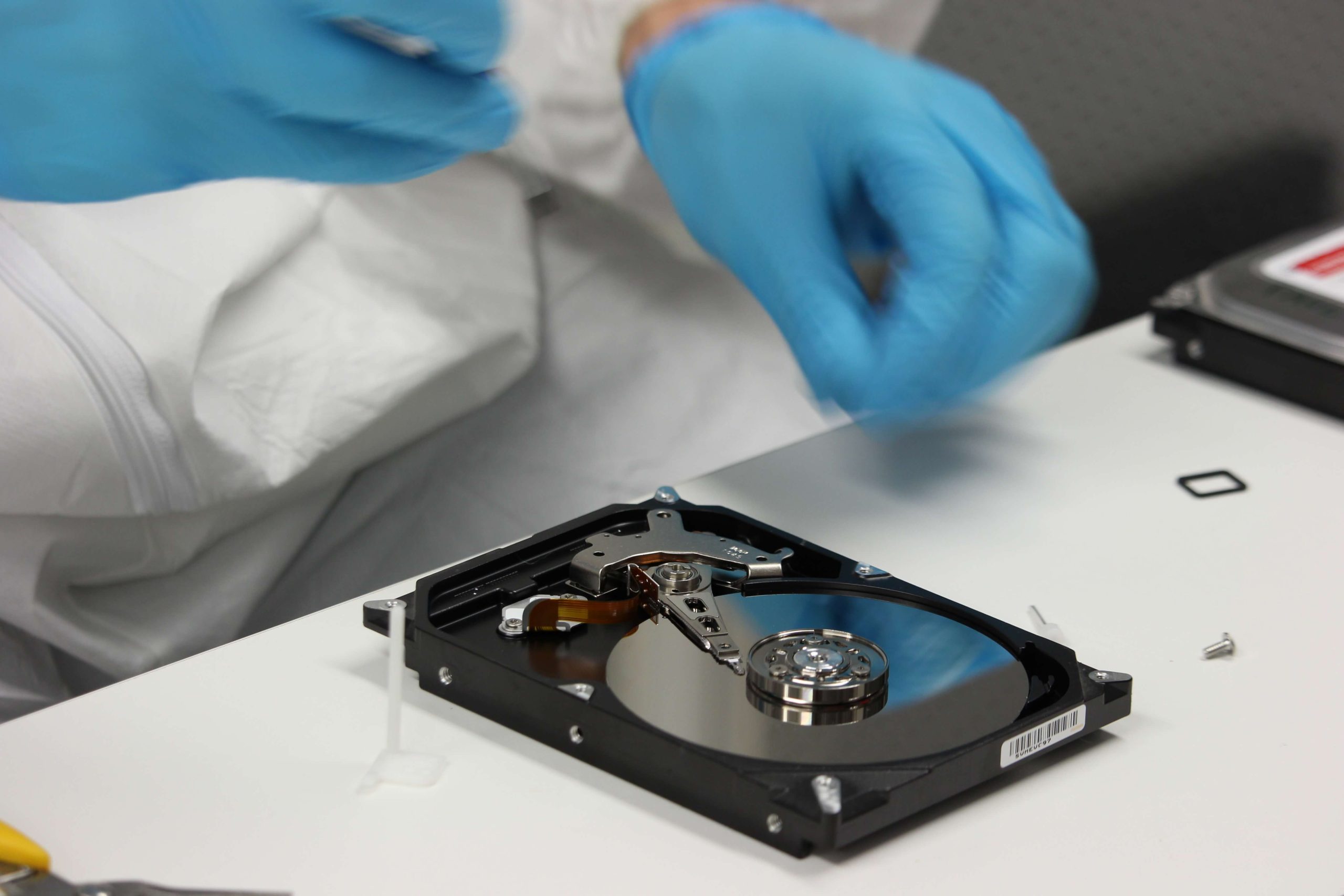
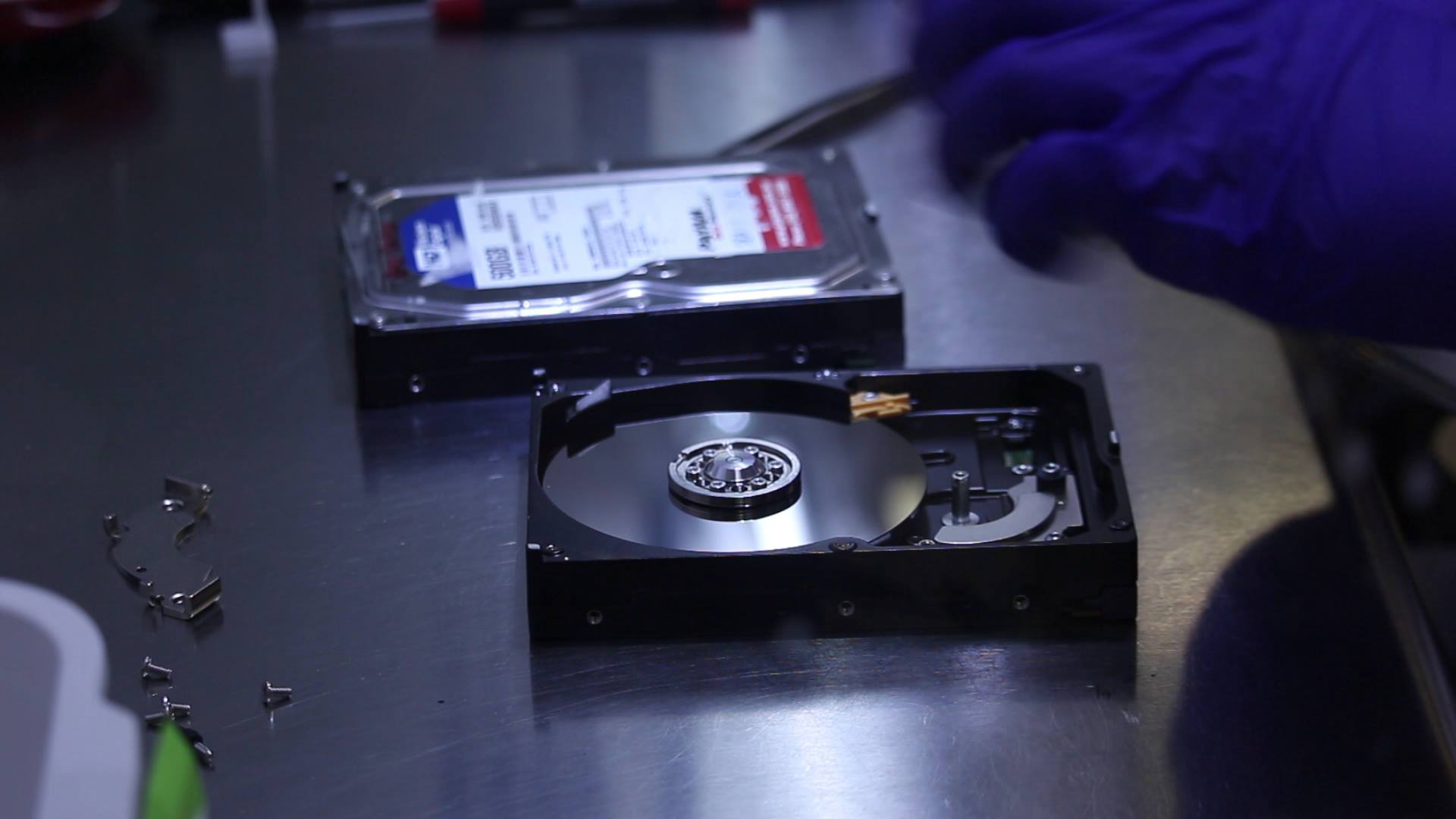
If all else fails and your phone is physically damaged or completely unresponsive, professional data recovery services may be your last option. These services have the tools and expertise to retrieve data from severely damaged devices, including phones with broken screens, water damage, or hardware failures.
Professional data recovery involves removing the phone’s storage chip and accessing the data directly through specialized equipment. This can be an expensive option, but if the data is critical (e.g., irreplaceable photos or business files), it may be worth the investment.
Step 6: Prevent Future Data Loss
Once you’ve recovered your data, consider taking steps to prevent data loss in the future:
- Enable Automatic Backups: Ensure that your device is set to back up to the cloud regularly. For Android, enable Google Drive backups; for iPhones, ensure iCloud backups are turned on.
- Use External Storage: For important files, consider using external storage solutions such as microSD cards (for Android devices) or external hard drives.
- Invest in a Screen Protector and Case: A protective case and screen protector can help prevent physical damage to your phone in the future.
- Regularly Back Up to Your Computer: In addition to cloud backups, consider connecting your phone to a computer and backing up important files periodically.
Conclusion
A broken phone can be a stressful experience, especially when it means losing valuable data. However, in most cases, there are several methods you can try to recover your data, from checking cloud backups to using recovery software or professional services. By understanding the nature of the damage and using the right tools, you can increase your chances of recovering your data and protecting it for the future.
If you’re ever in doubt or unsure of the recovery process, don’t hesitate to contact a professional to help you retrieve your important files. And, moving forward, make sure to back up your data regularly to avoid similar issues in the future.