Experiencing a laptop crash can be a nightmare, especially if you’re working on an important project or presentation. Your laptop suddenly shuts down, and you fear that all your data has been lost. Whether due to software malfunctions, hardware failures, or system errors, data recovery from a crashed laptop can be tricky. However, there is a way to retrieve your files, even if the laptop seems completely unresponsive.
If you find yourself in this situation, don’t panic. There are methods you can try to recover your lost data. Here’s a step-by-step guide on how to recover data from a crashed laptop.
Common Reasons for Laptop Crashes
Before diving into recovery methods, it’s essential to understand why your laptop might have crashed. Some of the most common reasons include:
- Software Failures: Operating system crashes, application errors, or corrupt software can lead to a laptop crash.
- Hardware Failures: Issues with the hard drive, motherboard, RAM, or other components can cause your laptop to crash.
- System Overload: Running too many programs at once or pushing your laptop beyond its capacity can lead to system instability and crashes.
- Virus or Malware Infections: Malicious software can corrupt or damage your operating system, leading to crashes.
- Sudden Power Loss: Unexpected shutdowns or power failures can result in data corruption or loss.
Regardless of the cause, the good news is that data loss from a crashed laptop is not always permanent. If you follow the correct steps, you can recover your files, even if your laptop is not booting up.
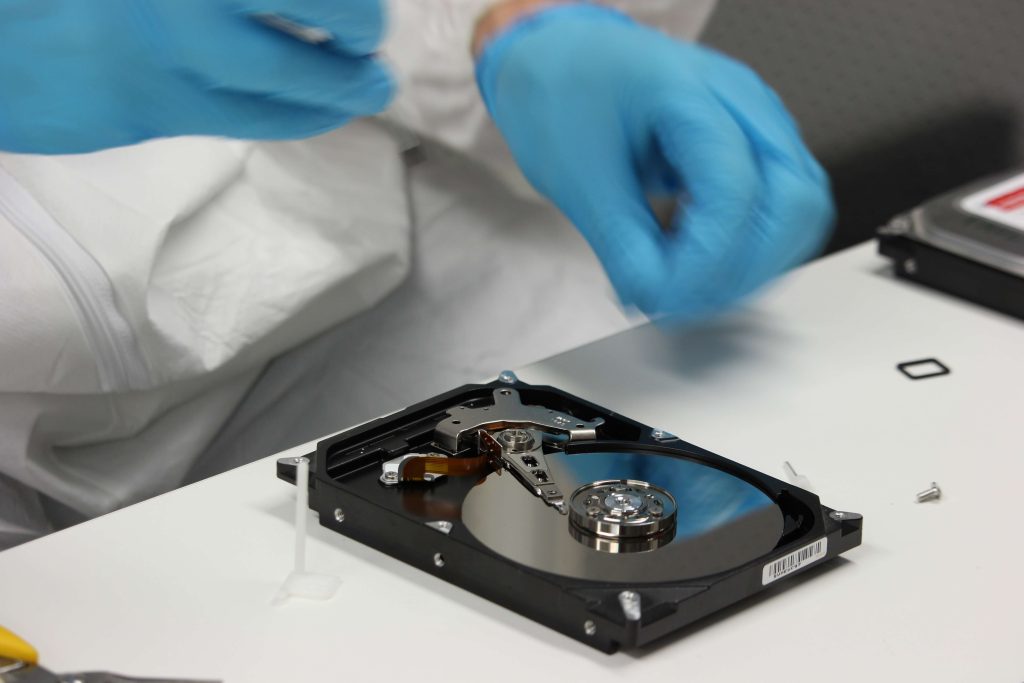
How to Recover Data from a Crashed Laptop
Step 1: Don’t Panic – Stop Using the Laptop
The first thing you should do when your laptop crashes is stop using it immediately. If your laptop is still running, don’t try to force it to restart or continue working on it. Doing so could overwrite the data, making recovery more difficult or impossible.
Instead, power off your laptop and leave it off. By doing so, you’ll prevent any further damage to your hard drive, increasing your chances of successfully recovering your files.
Step 2: Remove the Hard Drive from the Crashed Laptop
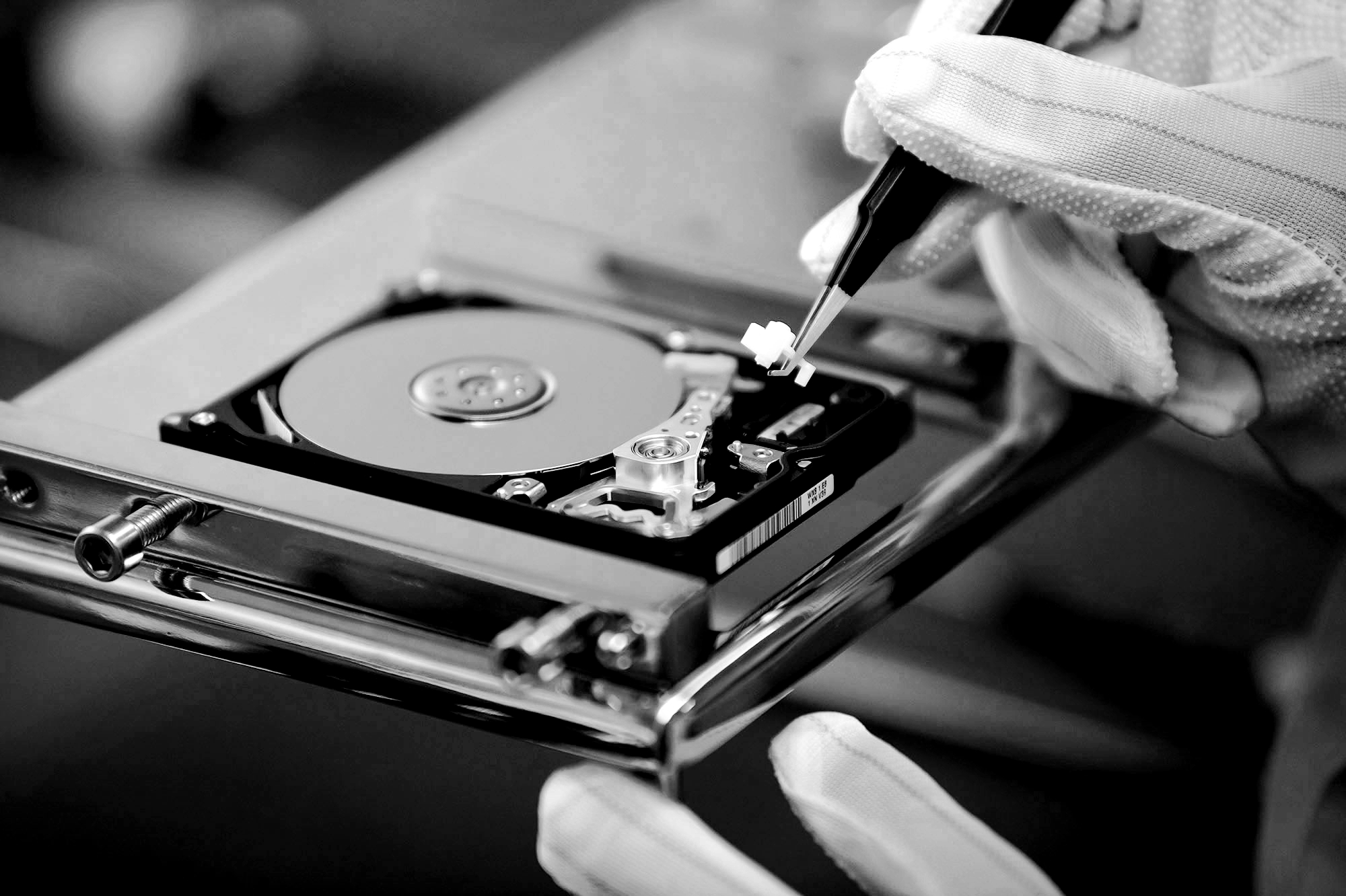
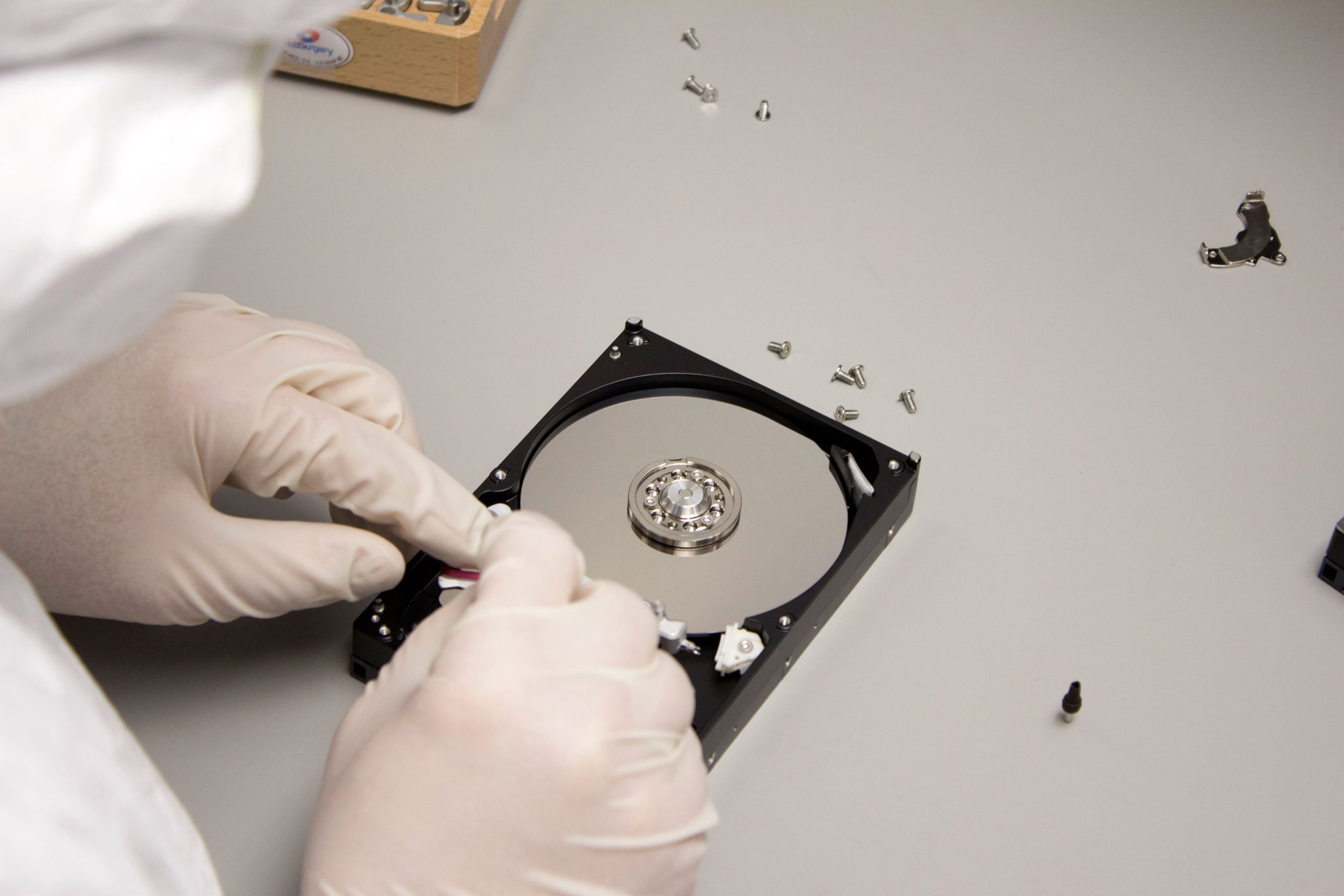
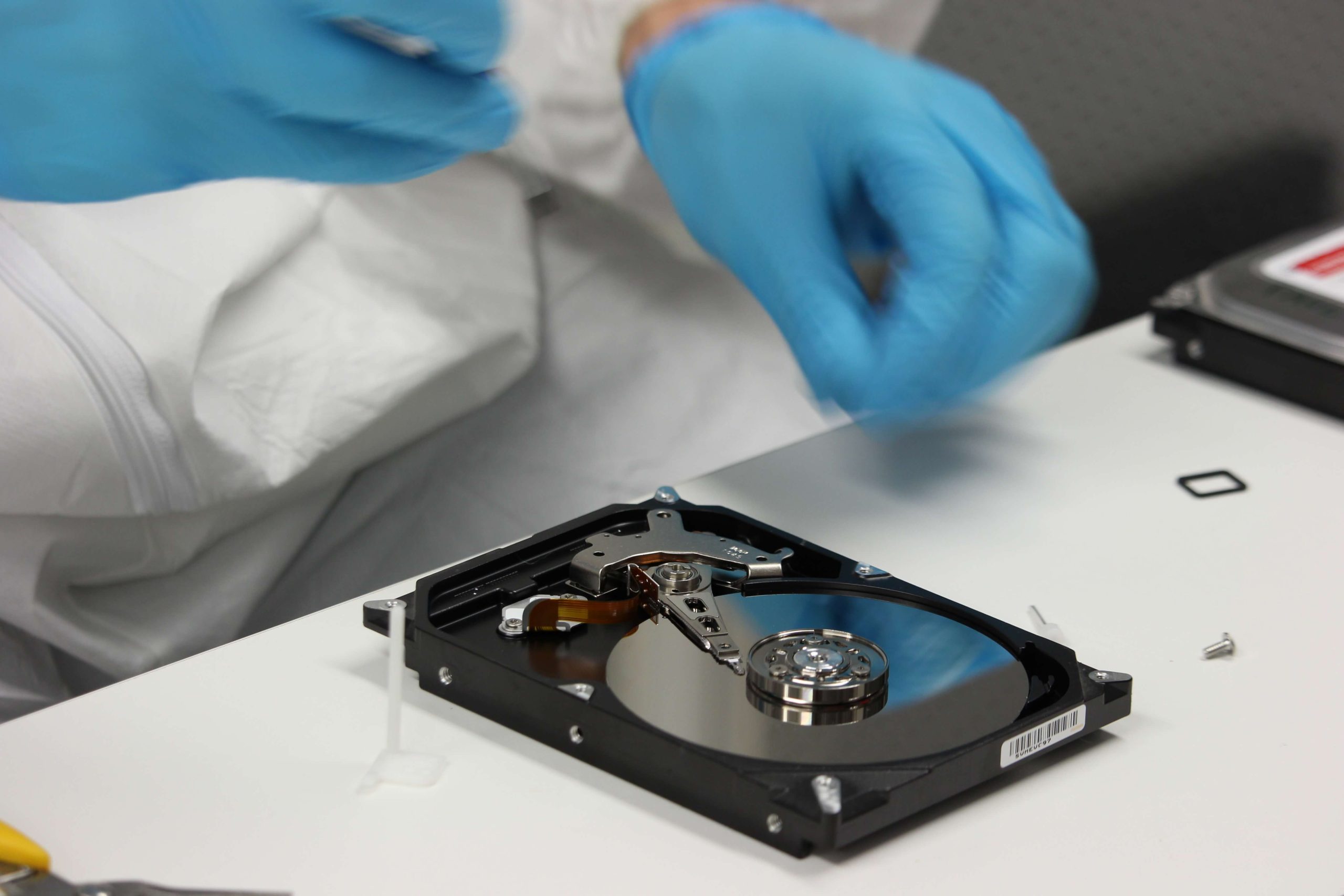
To recover data from a crashed laptop, you need to physically remove the hard drive. Depending on the model of your laptop, this process may be a little tricky, but here’s a general guide:
- Turn off your laptop and unplug it from any power source.
- Remove the battery if possible.
- Unscrew the back panel of the laptop to access the hard drive. Most laptops have a small compartment or screws that allow you to remove the hard drive.
- Disconnect the hard drive carefully from the laptop’s motherboard.
Once you’ve successfully removed the hard drive, you’ll need to connect it to a working computer to begin the recovery process.
Step 3: Connect the Hard Drive to Another Computer
After removing the hard drive, you need to connect it to a working computer to retrieve the files. This can be done in two ways:
- Using a SATA to USB Adapter: If your laptop’s hard drive is a standard 2.5-inch SATA drive, you can use a SATA to USB adapter. This adapter will allow you to connect the hard drive to another computer via a USB port.
- Using a Docking Station or External Enclosure: Alternatively, you can place your hard drive into a docking station or external hard drive enclosure. This method is particularly useful if you have multiple drives to recover or prefer a more permanent solution for connecting the drive to your computer.
Step 4: Use Data Recovery Software
Once your hard drive is connected to another computer, you can begin the data recovery process. The best approach is to use data recovery software that can scan the hard drive and recover files, even if the system is not booting properly.
One of the most reliable tools for this job is Remo Recover, a powerful data recovery software that can recover lost files from crashed laptops, external hard drives, and other storage devices. Here’s how to use it:
- Download and Install Remo Recover: Install Remo Recover on the healthy laptop or computer. Make sure that the software is installed on a different drive from the one you’re recovering files from.
- Launch the Software: Open the Remo Recover program and select the connected hard drive as the target drive for recovery.
- Scan for Lost Files: The software will begin scanning the crashed laptop’s hard drive. It will identify and recover deleted, lost, or corrupted files.
- Preview and Save Recovered Files: Once the scan is complete, the software will allow you to preview the recoverable files. You can then select the files you wish to restore and save them to a safe location, such as an external drive or cloud storage.
Step 5: Check the Recovered Files
After the recovery process is complete, carefully check the files to ensure they have been recovered properly. If there are any issues, you can attempt the recovery again or try using alternative software.
What to Do If Data Recovery Fails
While Remo Recover is effective in many cases, it may not always be able to recover all types of data, especially if the hard drive is severely damaged. If the data recovery software fails, here are a few options to consider:
- Try Alternative Recovery Tools: There are many data recovery programs available, such as EaseUS Data Recovery Wizard, Recuva, or Disk Drill. Trying a different tool may yield better results.
- Seek Professional Data Recovery Services: If your hard drive is physically damaged or the recovery software isn’t successful, you may need to consult a professional data recovery service. These experts have the equipment and expertise to recover data from severely damaged drives.
Preventing Future Data Loss
While recovering data from a crashed laptop is possible, it’s always better to prevent the issue from occurring in the first place. Here are a few tips to keep your data safe:
- Regular Backups: Always back up your important files on an external hard drive or cloud storage service. Set up automatic backups to ensure your data is always protected.
- Defragment Your Hard Drive: Regularly defragment your hard drive to improve its performance and reduce the likelihood of crashes.
- Use Antivirus Software: Keep your antivirus software up to date to prevent malware from corrupting your files and causing system failures.
- Avoid Overloading Your Laptop: Don’t run too many applications at once or push your laptop beyond its capacity. This can help prevent system crashes.
Conclusion
A laptop crash doesn’t necessarily mean the end of your data. By following the steps outlined in this guide, you can recover your files, even if your laptop is no longer booting. By removing the hard drive, connecting it to a working computer, and using reliable data recovery software like Remo Recover, you can retrieve lost files in no time.
Remember, prevention is key—regular backups and maintaining your laptop’s health can save you from future data loss.