Is your SSD broken, dead, or crashed? If you’re searching for a reliable solution to recover data from a faulty or dead SSD drive, you’ve come to the right place. Don’t panic! This article will walk you through the steps to recover data from a crashed or failed SSD drive. Just follow the solution, and you’ll be on your way to restoring your files.
What is an SSD?
A Solid State Drive (SSD) is a data storage device that offers faster access speeds, low power consumption, high performance, and durability compared to traditional Hard Disk Drives (HDD). Unlike HDDs, SSDs have no moving parts, which makes them more resistant to shocks and better suited for reliability and longevity.
While SSDs are generally reliable, they are not immune to failure. Even with fewer mechanical parts, SSDs can still crash, fail, or die, and data loss can happen unexpectedly. The good news is that data recovery from a failed or dead SSD is often possible.
Why Do SSDs Fail?
SSDs are designed to last a long time. In fact, studies like those conducted by Tom Hardware indicate that SSDs can last for over a decade if used properly, based on write cycles. However, SSDs can fail for various reasons, including:
- Excessive write cycles: Although SSDs are durable, they have a limited number of write/erase cycles, which can eventually cause failure.
- Physical damage: Even though SSDs don’t have moving parts, they can still suffer from physical damage due to power surges, overheating, or mishandling.
- Firmware corruption: An issue with the SSD’s firmware can cause the drive to become unresponsive or fail completely.
- Electrical failure: Problems with the power supply or internal components of the SSD can lead to a complete failure.
How to Recover Data from a Dead SSD?
If your SSD has crashed, failed, or become unresponsive, there are still several methods you can try to recover your data.
1. Check for Backup Copies
The first step is to check if you have any backups of your important files. If you’ve been regularly backing up your data, you can easily restore it from a cloud backup service like Google Drive, iCloud, or any external backup solution you use. If you have a backup, your data recovery process is essentially complete.
2. Use Data Recovery Software
If you don’t have a backup or the data you need isn’t in the backup, your next option is to use data recovery software. There are many tools available that can help you recover data from a dead or crashed SSD.
One such tool is SSD Data Recovery Software, which is designed to recover data from failed SSDs on both Windows and Mac computers. This software can recover files like photos, videos, and audio in various formats.
Here’s how to use SSD data recovery software:
- Download and Install the Software: Install a reliable SSD data recovery tool on a working computer. Make sure you choose a program that supports both Windows and Mac if you’re unsure of your operating system.
- Connect the SSD: Connect the dead SSD to a working computer via a USB-to-SATA adapter or directly through a SATA cable.
- Run the Scanning Tool: Open the data recovery software and scan the SSD for lost or inaccessible files. The software uses advanced algorithms to search for and recover files from your SSD.
- Preview and Recover Data: After the scan is complete, the tool will display a list of recoverable files. Preview the files to check if they are intact, then proceed with the recovery process to restore your data.
3. Use Specialized SSD Recovery Services
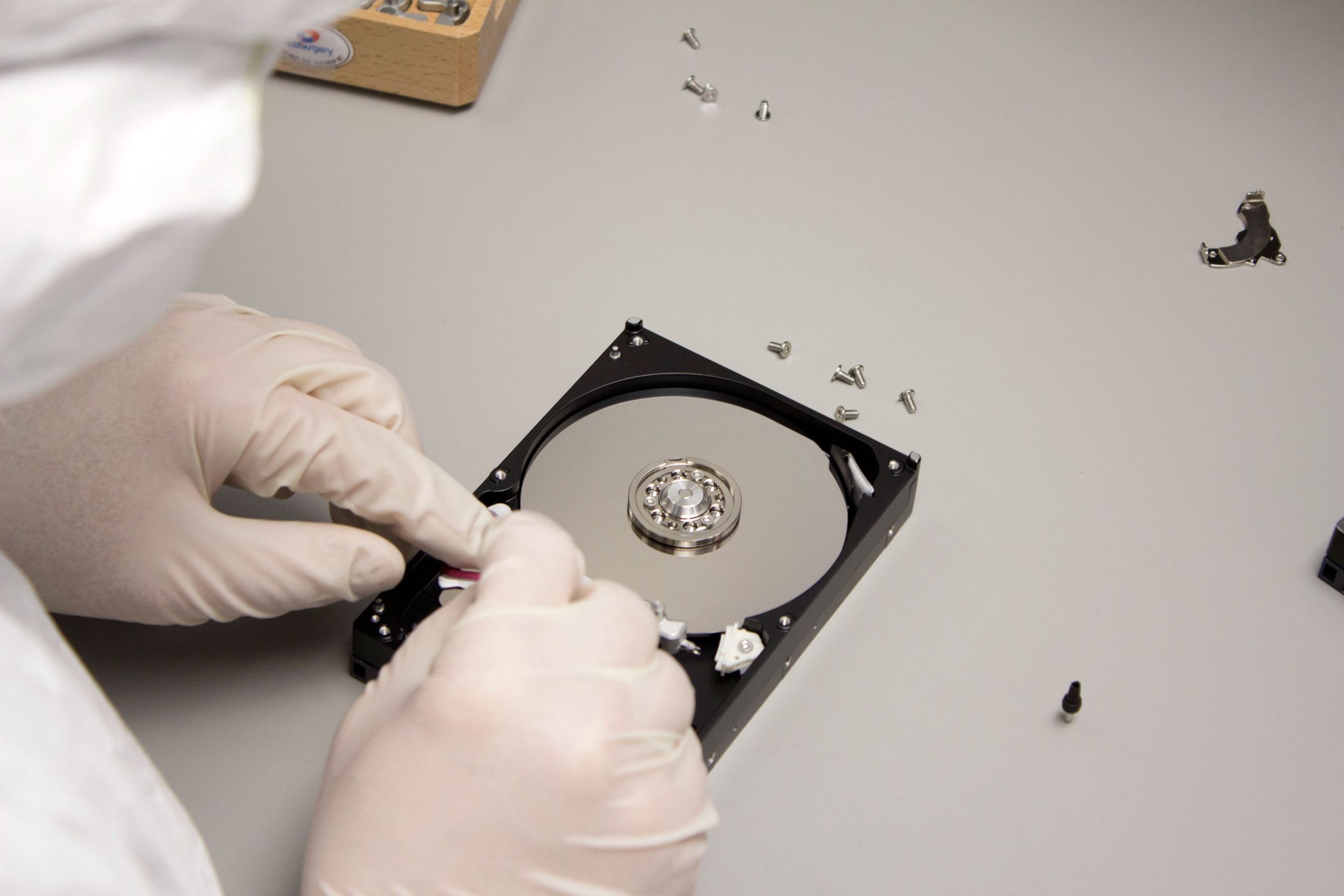
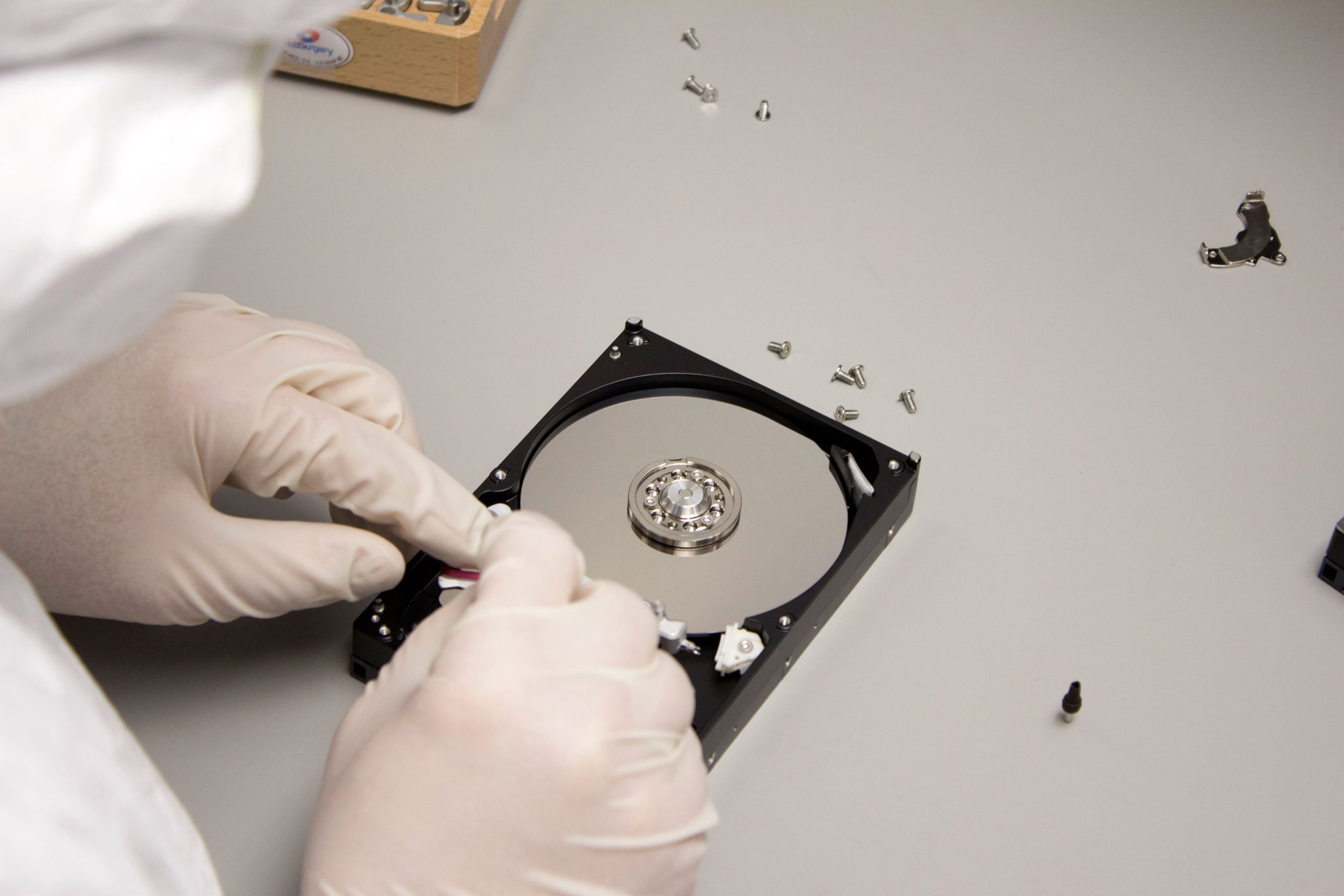
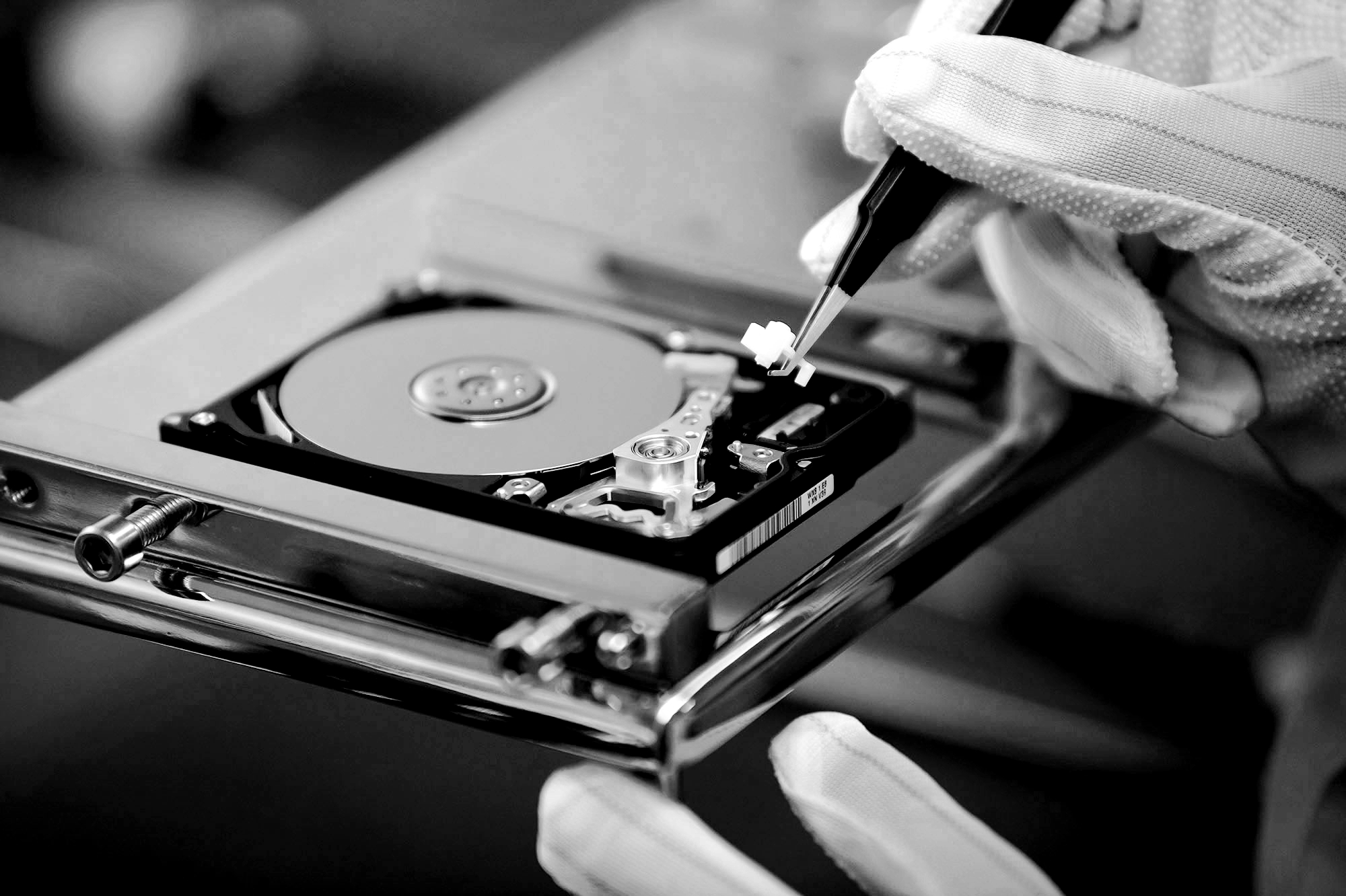
If the data recovery software doesn’t work or if your SSD has experienced severe physical damage (e.g., from power surges or fire), you may need to consult professional data recovery services. These services use specialized equipment to recover data from damaged or dead SSDs.
Recovery specialists can often retrieve data from severely damaged SSDs by directly accessing the internal NAND flash chips, which is beyond the capabilities of standard software.
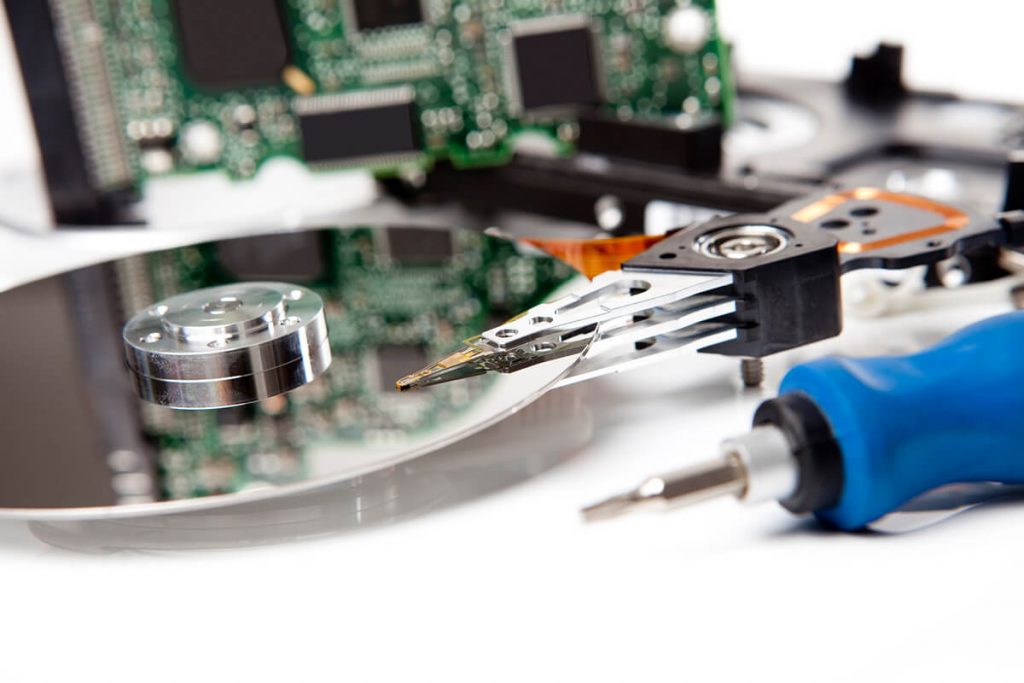
SSD Data Recovery Tools and Their Capabilities
While recovery software can be effective, it’s important to note that not all tools are the same. Some programs are designed to recover specific types of files, such as photos, videos, and audio, but may not be able to recover other types of data (e.g., documents, applications, or system files).
SSD Recovery Software Features:
- Fast Scanning Algorithms: These tools use advanced scanning techniques to quickly identify and recover missing, lost, or corrupted files from your SSD.
- Supports Multiple Formats: Many recovery tools can recover various file formats, including JPEG, PNG, MP4, MP3, and more.
- Preview Function: Most tools allow you to preview the recoverable files before you decide to restore them, helping you ensure you’re recovering the right data.
Preventing SSD Failures in the Future
Once you’ve recovered your data, it’s essential to take steps to prevent future SSD failures. Here are a few tips:
- Regular Backups: Make sure to back up your files regularly, either to the cloud or to an external hard drive, to ensure that your data is safe in case of SSD failure.
- Monitor SSD Health: Use tools like CrystalDiskInfo to check the health of your SSD and monitor its temperature and overall condition. Some SSDs come with built-in health monitoring features that you can use to track wear and tear.
- Avoid Overuse: Be mindful of the number of write cycles on your SSD, and avoid filling the drive to its maximum capacity, as this can reduce the lifespan of the device.
- Protect from Power Surges: Use a surge protector to safeguard your SSD from power surges that could potentially cause damage.
Conclusion
While SSDs are generally reliable, they are not invincible. When an SSD crashes, fails, or dies, it can seem like a catastrophic loss, especially if you have important files stored on it. However, with the right tools and techniques, you can often recover your lost data.
Start by checking for backups, then try using data recovery software, and if necessary, consult a professional recovery service. By following the steps outlined above, you can maximize your chances of restoring your files and ensuring the health of your SSD moving forward.