Data loss can occur due to two primary causes: hardware failure and logical failure. While hardware failure involves physical damage to the drive, logical failure is often related to errors that occur in the file system or data structures, which can be caused by human mistakes or malicious actions like ransomware attacks.
Understanding the nature of the failure is crucial for determining the best approach to data recovery. This article explores both types of failure and outlines the steps for recovering your lost data, whether you prefer to tackle it yourself or seek professional help.
Types of Data Failures
1. Logical Failure (Data Corruption)
Logical failures are the result of errors that do not physically damage the hard drive but corrupt the data stored on it. These can include:
- Accidental File Deletion: Sometimes, files are deleted by mistake, or they may be lost due to a formatting error.
- Partition Loss: If a partition is accidentally deleted or overwritten, your data may become inaccessible.
- File System Corruption: A corrupted file system may prevent access to your files, even though the data is still intact.
- Ransomware and Viruses: Malicious software can cause data corruption or encrypt files, making them unreadable until the encryption is removed or the ransom is paid.
Fortunately, in the case of logical failures, specialized software tools are available to recover deleted files, repair corrupted file systems, or restore lost partitions. These tools can scan your drive and attempt to reconstruct lost or corrupted data. Some of the most effective data recovery programs include Recuva, EaseUS Data Recovery Wizard, and Disk Drill.
If you’re not comfortable using data recovery software or if you’re unsure about the extent of the damage, it’s a good idea to consult a professional. However, be cautious: using recovery software on a drive with hardware issues could potentially worsen the problem.
2. Hardware Failure (Physical Damage)
Hardware failures are more complex because they involve physical damage to the drive itself. These failures may occur for several reasons:
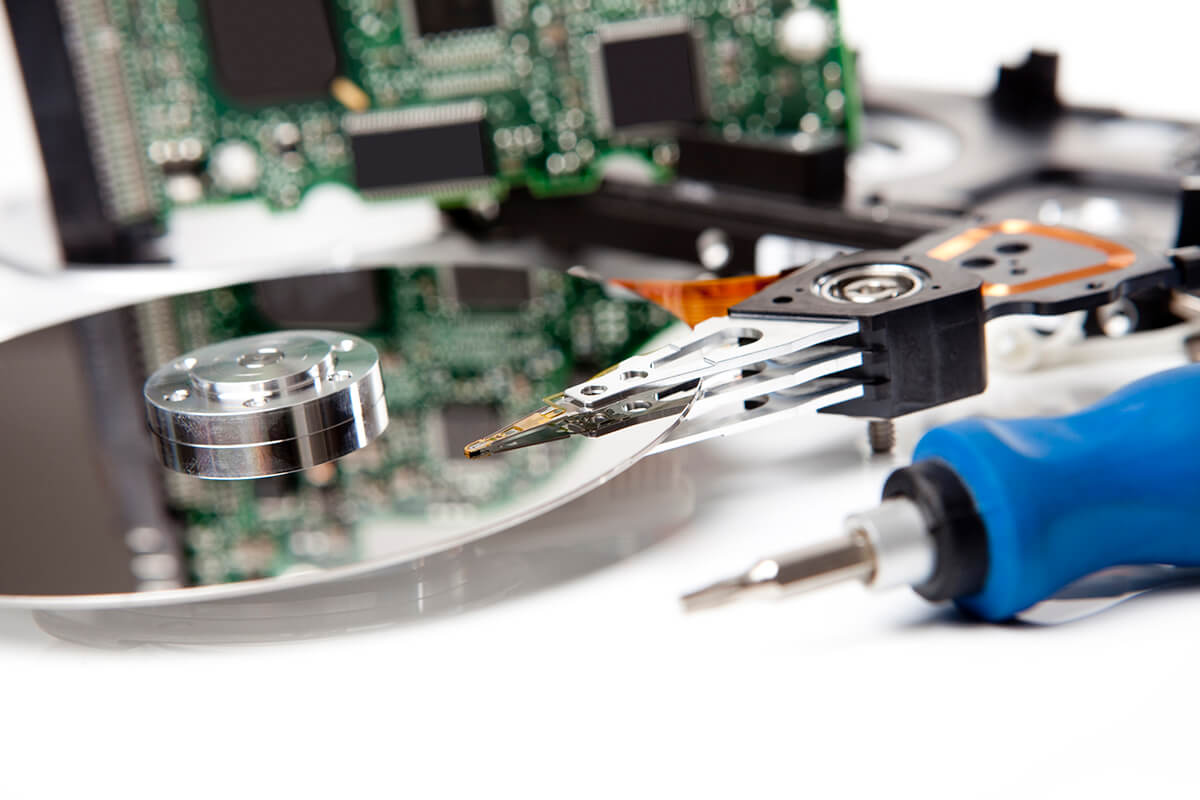
- Mechanical Failures: Issues with the motor, read/write heads, or platters that prevent the drive from spinning or reading data properly. These are common after the drive experiences a physical shock or drop.
- Electronic Failures: Damage to the circuit board (PCB) of the drive can cause it to fail to power on or stop functioning altogether. In some cases, the disk will spin up briefly before stopping, which is often a protective measure to prevent further damage.
- Severe Head Crashes: In more extreme cases, a head crash occurs when the read/write heads come into contact with the drive’s platters, damaging the data stored on them.
With hardware failure, recovery attempts must be handled with extreme caution. If the drive is experiencing mechanical failure, running recovery software could worsen the situation by causing more damage to the drive and making the data harder to recover.
Steps to Take When Facing Data Loss
Diagnosing the Problem
- Check the Symptoms: If your drive no longer spins or makes a clicking noise, it could be an electronic failure. If it spins up but then stops, it could indicate a mechanical issue, and the drive may be entering a self-protective mode.
- Act Quickly: If you suspect a hardware failure, time is critical. For hard drives that no longer spin or emit sounds, try to turn off the device immediately. Continuing to run the drive could worsen the problem. If the drive is in a laptop, shut down the system immediately. For desktop hard drives, if the drive is not your system disk, it’s best to remove the drive and place it in an external dock to avoid further strain on the drive.
- Avoid Using the Drive: For both logical and hardware failures, avoid using the drive until you’ve confirmed the extent of the damage. Running recovery software on a failing drive could cause further damage, particularly in the case of a hardware failure.
Recovering Data from Logical Failures
For logical failures, you can attempt to recover data using data recovery software:
- Recuva: A free tool that’s great for recovering deleted files from hard drives, memory cards, and other storage devices.
- EaseUS Data Recovery Wizard: A user-friendly tool that supports a wide variety of file types and can recover lost partitions.
- Disk Drill: Another great option for recovering lost or deleted files with a simple, easy-to-use interface.
These tools scan the drive and attempt to retrieve data even if it has been deleted, lost, or corrupted. However, the success of these tools depends on how much the data has been overwritten. The sooner you attempt recovery, the better your chances of getting your files back.
When to Seek Professional Help
If the failure is hardware-related, or if the logical failure software tools can’t recover your data, it may be time to call in a professional. Data recovery specialists have the tools and expertise to recover data from physically damaged drives, though this process can be costly.
Key Indicators That You Need Professional Help:
- The drive is physically damaged (e.g., clicking or grinding noises).
- You’re unable to access any files despite using recovery software.
- The drive is unrecognized by your system, even after trying to connect it to different devices.
How Professionals Recover Data from Hardware Failures
Professional data recovery companies often use advanced techniques like:
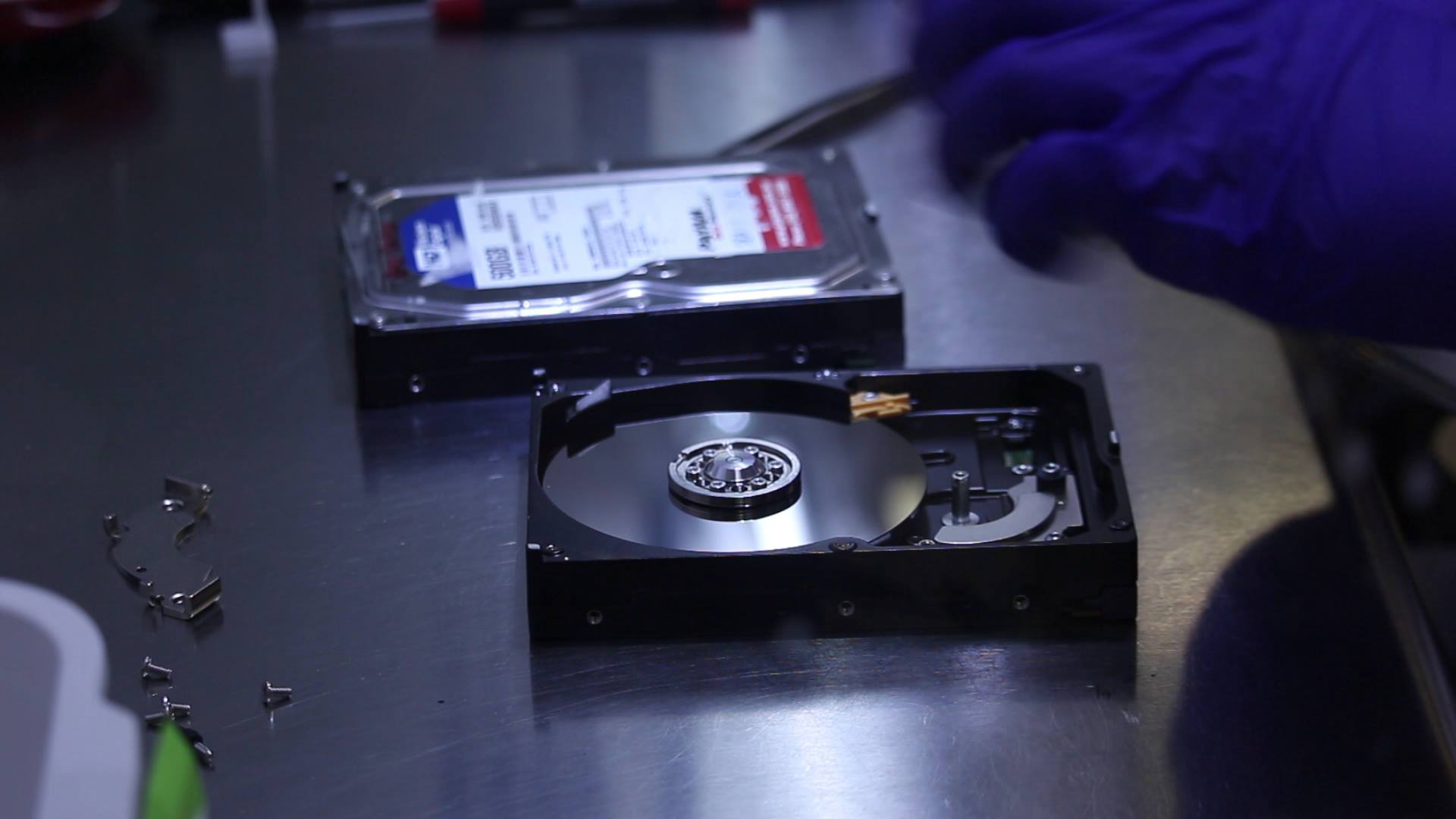
- Clean Room Recovery: For drives with mechanical failures, specialists will open the drive in a clean room to replace or repair faulty parts (such as the heads or motor).
- PCB Repair: For drives with electronic issues, specialists can swap out damaged PCBs or repair them.
- Head Replacement: If the read/write heads are damaged, professionals can replace them to access the data stored on the platters.
Conclusion
Data loss can stem from either logical or hardware failures. While logical failures can often be resolved using data recovery software, hardware failures require more specialized attention. It’s important to diagnose the issue carefully before proceeding with any recovery attempts.
- For logical failures, using recovery software like Recuva, EaseUS, or Disk Drill can help recover your files.
- For hardware failures, it’s best to seek professional help immediately to prevent further damage and improve the chances of data recovery.
Whether you choose to recover the data yourself or hire a professional, the key is acting quickly and carefully to avoid exacerbating the problem.