There’s one moment that can send a chill down your spine, making you feel like the world is crumbling around you: when your mobile phone suddenly breaks. Beyond the shock of the moment, the true horror sets in when you realize that your entire personal life—photos, contacts, messages, documents—is stored in that small, fragile device that is now completely unresponsive.
But don’t panic just yet—data recovery is still possible in many situations. Even if your phone won’t turn on, there’s a good chance that you can retrieve your data or, at the very least, access your files through other means. Whether your phone is dead because of a damaged motherboard, processor, or battery, or simply because the screen isn’t functioning properly, there are steps you can take to recover your important data.
In this article, we’ll explore how to assess the situation, identify the cause of the issue, and what methods you can use to recover your valuable data from a broken mobile phone.
Understanding the Problem: Why Won’t My Phone Turn On?
When a smartphone fails to power on, it doesn’t necessarily mean it’s completely broken. In many cases, the issue lies with the screen. The phone may still be functioning, but the display might be damaged or malfunctioning, preventing you from seeing anything on the screen.
Here’s a simple test to determine if this is the case:
- Check the volume: Turn the volume up to its maximum setting and ensure the phone isn’t muted. If you can hear the ringer or a notification sound, it’s likely that the phone is still operational, but the display is the problem.
- Look for visual clues: Hold the phone up to a light source and carefully inspect the screen. If you notice faint images or text, it’s likely that the backlight of the display has failed. This would mean that the phone is functioning, but the display isn’t showing anything due to this issue.
- Connect the charger: Plug in your phone to a charger and see if a charging light appears. This can confirm that the phone is receiving power, even if the screen isn’t working.
Troubleshooting Your Mobile Device
Before jumping to conclusions and assuming your phone is beyond repair, try these troubleshooting steps to determine whether the issue lies with the screen or another component:
- Hard Reset: Perform a hard reset on your device. On most phones, you can do this by holding down the power button and volume down button simultaneously for 10-15 seconds. This can help resolve software-related issues that might be causing the phone to freeze or not turn on.
- External Display: If your phone still isn’t showing anything on the screen, try connecting it to an external display using a USB-to-HDMI adapter (if supported). This allows you to see if the phone’s display is the issue, or if the problem extends to the phone’s motherboard.
- Battery Check: If the battery is completely drained or damaged, the phone may not power on at all. Try connecting the phone to a charger and leaving it plugged in for a while. If the phone doesn’t show any signs of life after charging, the battery might need replacing. Some advanced users might attempt to replace the battery themselves, but if you’re not experienced, it’s best to seek professional help.

Data Recovery Options: What To Do Next
If you’ve determined that your phone is still functional but the display is damaged or malfunctioning, the next step is to recover your data. Here are some methods you can try:
- Use a PC to Access Your Data: If the phone is still powering on but you can’t see anything on the screen, you might be able to access your data by connecting it to a PC. On most Android and iOS devices, you can transfer files such as photos, videos, and documents to your computer by enabling USB file transfer mode.
- For Android phones, connect your device to the PC via USB and select “File Transfer” mode from the phone’s notification menu (if visible). If the phone is still operational, your PC should recognize the device, allowing you to browse and copy your files.
- For iPhones, you can connect the phone to your computer and use iTunes (or Finder on macOS Catalina and later) to back up or extract your data.
- Use Cloud Backup: Many smartphones automatically back up data to the cloud, such as Google Drive for Android or iCloud for iPhones. If you’ve enabled these services, you can easily access your photos, contacts, and other important data from another device by signing into your account.
- For Android users, visit the Google Drive website or use the Google Photos app to check if your data has been backed up.
- For iPhone users, access your data via iCloud.com or the iCloud app on another Apple device.
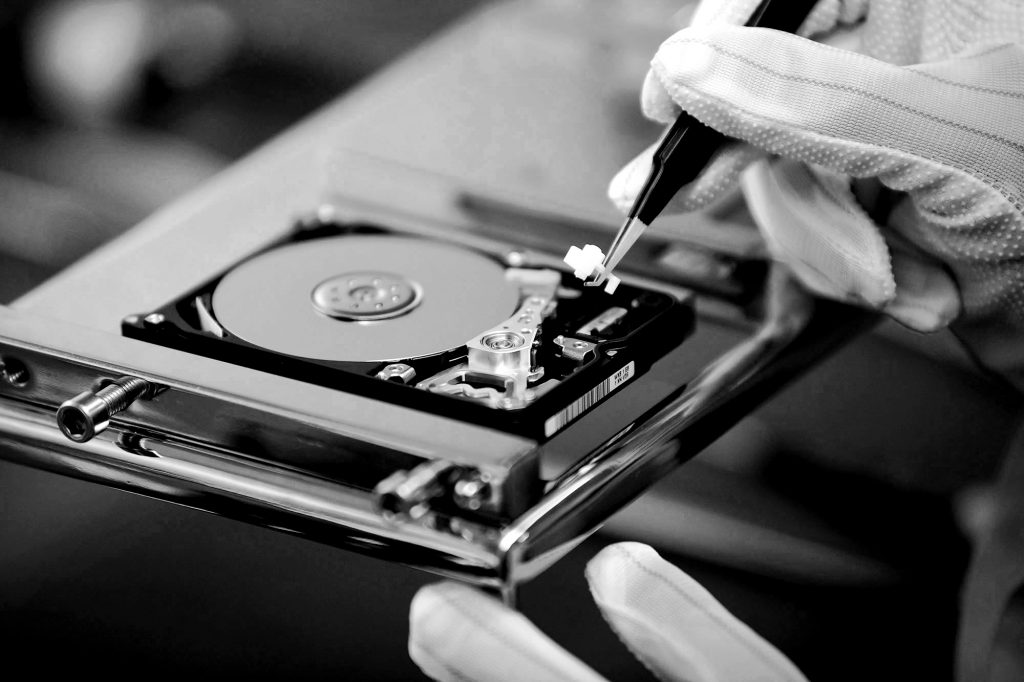
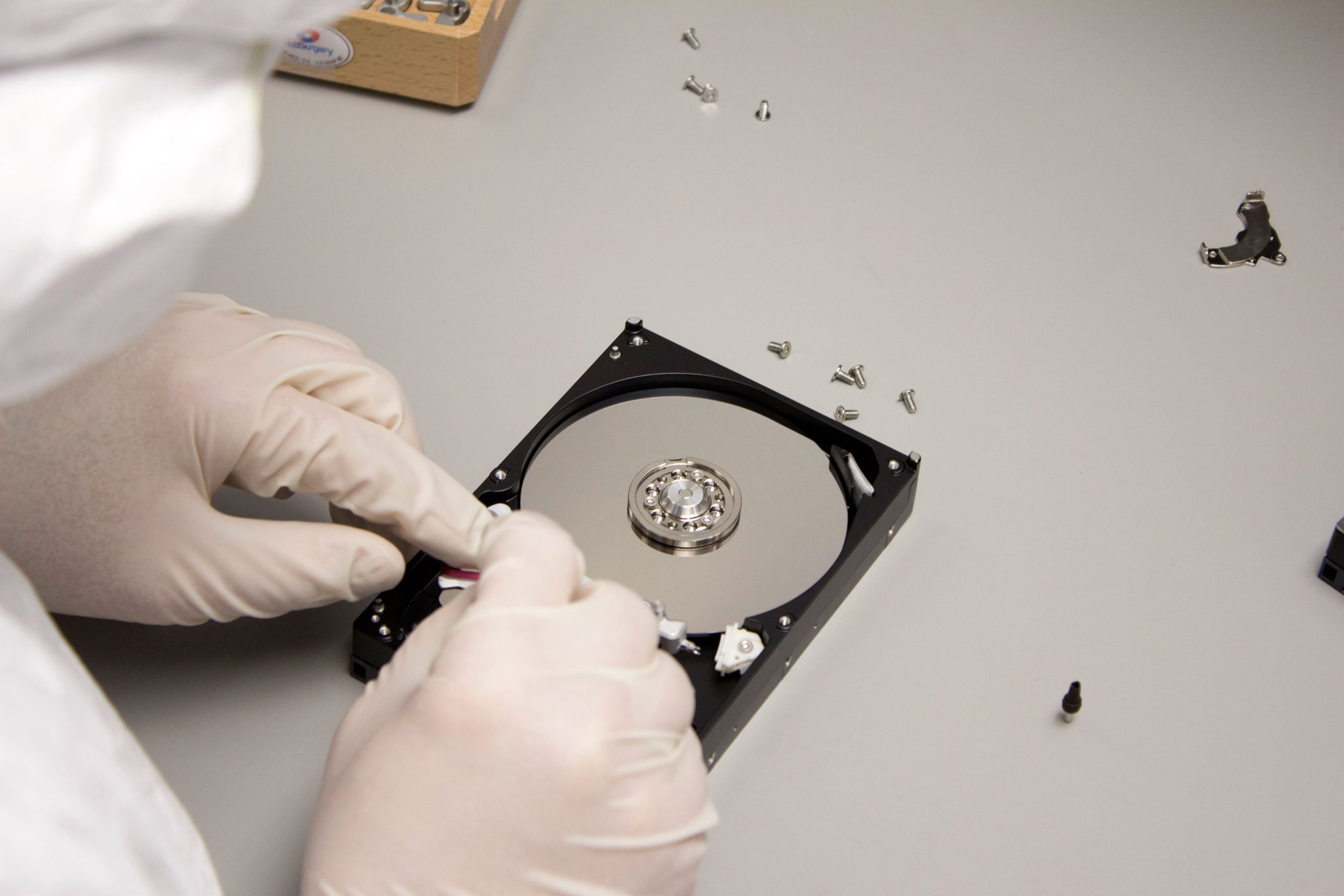
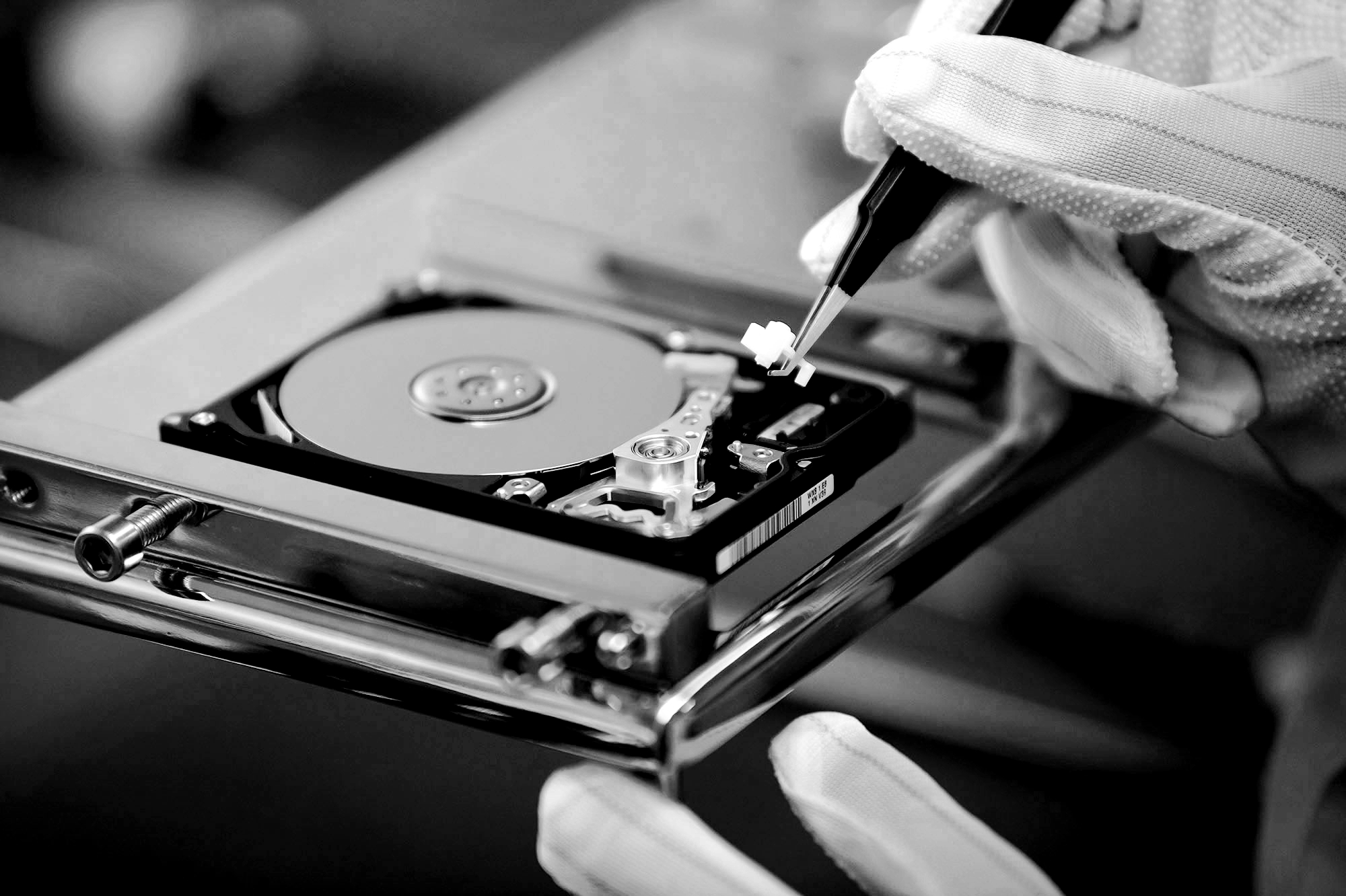
- Seek Professional Data Recovery: If your phone is physically damaged (e.g., water damage or a cracked motherboard), and you’re unable to recover your data through the methods above, professional data recovery services might be your best option. These specialists have the equipment and expertise to recover data from damaged or malfunctioning devices. While this service can be expensive, it’s worth considering if your data is irreplaceable.
Preventing Future Data Loss
While data recovery is possible in many cases, it’s always better to be proactive and prevent data loss from happening in the first place. Here are some steps to help safeguard your important data:
- Regular Backups: Set your phone to automatically back up to the cloud (Google Drive, iCloud, etc.) on a regular basis. This ensures that your most recent data is always available, even if your phone breaks or is lost.
- Use External Storage: For important files like photos, videos, and documents, consider using external storage options such as microSD cards (for Android) or external hard drives to back up your data.
- Protect Your Phone: Invest in a high-quality phone case and screen protector to help prevent damage from drops and impacts. Additionally, consider using a waterproof case if you’re prone to water exposure.
Conclusion
Dealing with a broken phone can be a stressful experience, especially when you realize how much important data is stored within it. However, not all hope is lost. By diagnosing the problem and using the appropriate recovery methods, you can often retrieve your data and restore it to a new device. And by taking steps to back up your data regularly, you can minimize the impact of future mishaps.
Remember, in cases of severe damage or if you’re unsure how to proceed, seeking professional help is always a good option. A reliable data recovery service can often save the day when DIY methods fall short.